I wrote a program that displays a 2D sine pattern in the console. It's mainly just for fun, as it doesn't really do anything else, but it looks cool.
NOTE: If it gives errors about unresolved externals when you try to compile it, it's because you need to link it with a curses library, such as ncurses or pdcurses.
Source code: http://pastebin.com/n49wmSb3
Sample output: http://pastebin.com/0r38z05H
Friday, February 18, 2011


Sunday, September 19, 2010
Grow HFS+ partition on Mac OS X without Disk Utility
I have Boot Camp set up, and I had shrunk my main Macintosh HD partition to make room for an Ubuntu partition. Turns out I didn't really want it as much as I thought I did, so I used a GPartEd live CD to remove the partition. However, it wouldn't let me grow it back. Turns out GPartEd can't do that. I called AppleCare to ask what I should do, and I was actually on the telephone for a little over an hour. They told me to use Disk Utility to grow the partition. I tried, however, and it gave me the error message "Partition Failed with the error: Filesystem resize support required, such as HFS+ with Journaling enabled." They tried to help, but they weren't able to solve the problem. I came across this forum post, however, and it mentioned the diskutil command, more specifically the resizeVolume subcommand. I tried this, and it worked! Here's what to do if you ever have the same problem:
Here's a screen transcript of what I did in the Terminal in case it helps (highlighted lines represent what I typed): http://pastebin.com/hKMkCsQy
- Open Disk Utility.
- Select the volume you want to grow, and click Info in the toolbar.
- Note the Disk Identifier (from here on referred to as ????), and optionally quit Disk Utility.
- Open the Terminal.
- Type the following command: diskutil resizeVolume /dev/???? limits
- Note the Maximum Size (not the part in parentheses.)
- Type the following command: sudo diskutil resizeVolume /dev/???? [maximum size]
- Enter your password if prompted.
Here's a screen transcript of what I did in the Terminal in case it helps (highlighted lines represent what I typed): http://pastebin.com/hKMkCsQy
Thursday, May 13, 2010
Secret registry settings in Paint: Snap to grid
 Did you know that Paint has a secret feature that lets you snap to an invisible grid? This has nothing to do with the grid that you can display when zoomed in. The only downside, however, is that it involves editing the Registry, and therefore only takes effect when Paint is loaded. (You can always, of course, save your picture and reload it when you want to change grid settings.) For your convenience, I have put together 10 regfiles, as follows:
- OFF: Disables snapping to the grid. (Default setting.)
- ON: Enables snapping to the grid.
- 1-128: Sets the grid size to whichever number is chosen.
SnapToGrid is the value you change (DWORD, 0 or 1) to turn the grid on or off. GridExtent (DWORD) is the value you change to set the grid size. It does not need to be a power of two, although all the regfiles I provided are. If you find yourself using a certain number a lot, but it isn't a power of two, you can make your own regfile for it.
I hope you find this useful!
Tuesday, February 16, 2010
Extend the 60-second limit in Sound Recorder
You know that annoying 60-second limit in Windows XP's Sound Recorder? (Vista doesn't have it, but don't get me started on what else it doesn't have...) Some suggestions people have are using the Decrease Speed function, clicking the Record button quickly after it stops, or simply using another program. However, if none of these options are doing it for you, I've got a more geeky solution involving a hex editor, such as XVI32, which I'll be using.
You can't really remove the limit, as it works by allocating enough memory for that long a recording, but you can increase (or decrease, if you really want to) the amount of recording time it gives you. Now, you can't go crazy and set it to 9,999,999,999 seconds or something, as you need to have enough memory. (Audacity gets away with this by recording to the hard drive.) 5 minutes, however, is more than enough for most purposes.
(If you're using XVI32, skip the next paragraph.)
First, you're gonna need to convert that to seconds. 5 × 60 = 300 seconds, or 0x12C. Inside the EXE, the limit is stored as a 4-byte long value. You may think that as 4 bytes would be 00 00 01 2C, but the bytes are reversed. Instead, it's 2C 01 00 00. It's confusing, I know, but it's just the way it is.
Anyway, make a copy of Sound Recorder, and open the copy in your hex editor. The limit is stored at address 0x628E, so goto (in XVI32, it's Address>Goto...) that address. Follow the instructions below:
If you're using XVI32:
You can't really remove the limit, as it works by allocating enough memory for that long a recording, but you can increase (or decrease, if you really want to) the amount of recording time it gives you. Now, you can't go crazy and set it to 9,999,999,999 seconds or something, as you need to have enough memory. (Audacity gets away with this by recording to the hard drive.) 5 minutes, however, is more than enough for most purposes.
(If you're using XVI32, skip the next paragraph.)
First, you're gonna need to convert that to seconds. 5 × 60 = 300 seconds, or 0x12C. Inside the EXE, the limit is stored as a 4-byte long value. You may think that as 4 bytes would be 00 00 01 2C, but the bytes are reversed. Instead, it's 2C 01 00 00. It's confusing, I know, but it's just the way it is.
Anyway, make a copy of Sound Recorder, and open the copy in your hex editor. The limit is stored at address 0x628E, so goto (in XVI32, it's Address>Goto...) that address. Follow the instructions below:
If you're using XVI32:
- Go to Tools->Encode number...
- Type 300 (or however many seconds) in the text box.
- Select "longint (4 bytes)" on the left.
- Select "Overwrite at current adress [sic]" on the right.
- Click OK.
- Switch to Overwrite mode if necessary, usually using the Insert key. You should be able to tell which mode you're in by looking at the status bar. It should say either Insert (INS) or Overwrite (OVR).
- Type in the four bytes you calculated above, such as 2C 01 00 00.
Sunday, December 27, 2009
Simple gravity simulator in Visual Basic

(Now to get some sleep...)
EDIT: I really was tired. I forgot to post the download link! Sorry about that... :-/
Here it is: http://www.mediafire.com/?jzamowkogdd
Monday, November 02, 2009
Fix audio problems when running XP in Boot Camp
I have Windows XP installed on my MacBook Pro with Boot Camp, and until now I have been having two problems with the audio. One is that the volume is way too low, even at max. The other is that certain programs, such as the Source engine (games like HL2, Portal, TF2, etc.) don't work with the microphone. However I have recently come across a modified driver that fixes both of these problems. I didn't see anything about the mic, but it fixed it for me.
Here's the link: http://www.stuffedcow.net/macbook_audio
To install it, extract the archive to your desktop (it's already in a folder) or anywhere convenient. Then, open Device Manager (Start > My Computer (right-click) > Properties > Hardware tab > Device Manager.) Expand "Sound, video, and game controllers" and double-click "Cirrus Logic HD Audio". When the Properties dialog appears, click the "Update Driver..." button. Choose these responses I have outlined for you here:
Here's the link: http://www.stuffedcow.net/macbook_audio
To install it, extract the archive to your desktop (it's already in a folder) or anywhere convenient. Then, open Device Manager (Start > My Computer (right-click) > Properties > Hardware tab > Device Manager.) Expand "Sound, video, and game controllers" and double-click "Cirrus Logic HD Audio". When the Properties dialog appears, click the "Update Driver..." button. Choose these responses I have outlined for you here:
- No, not this time
- Install from a list or specific location (Advanced)
- Don't search. I will choose the driver to install.
- Have Disk...
Monday, July 27, 2009
AppleScript: Create an empty file with ease
I wrote this simple AppleScript that lets you create an empty file on the Mac, like you could in Windows. Make sure your script menu is enabled (Applications→AppleScript→AppleScript Utility→Show Script menu in menu bar) and then put it in your Library→Scripts folder. Here's the link:
http://pastebin.com/f67bb99ee
By the way, you don't need to cut 'n paste the whole thing. Just click the Download link at the top!
http://pastebin.com/f67bb99ee
By the way, you don't need to cut 'n paste the whole thing. Just click the Download link at the top!
Tuesday, March 03, 2009
3D Shading Editor
I've got a new program for you. It's called 3D Shading Editor. I've got a screenshot here, and the introduction from the Readme file, the latter of which should explain the weird colors in the screenshot. Here's the download link: http://www.mediafire.com/file/joomnm3xmgk/color3d.zip
 As I'm sure many of you know, when using the Windows Classic visual style, you can customize the colors of pretty much anything. However, unlike in Windows 3.1, when you change the color for 3D objects, such as buttons and dialogs, the highlight and shadow colors automatically change with it. This may seem nice, but what if you want to specify your own colors for this? Windows doesn't provide any method for this, except for editing the registry or theme files, which can be very inconvenient when you just want to see what it looks like. However, this program can change these colors independently.

Wednesday, December 31, 2008
Phallic display at Giant deli

I was at Giant the other day, and as I walked by the deli, I saw a decorative display which struck me instantly as looking quite phallic. If you don't know what that means, look it up. My mom and I both think it was made to look that way as a joke by an employee who has the same sense of humor as me. ;-)
EDIT: I just noticed, the "shaft" even has a picture of a rooster (cock) on it!
Tuesday, September 09, 2008
Xbox 360 Controller on PC Without Additional Software
Earlier today, I figured out a way to use an Xbox 360 controller on a PC without downloading or installing any additional software. I got the idea when I read (I forgot where) that the controller is a standard HID device, except it sends the wrong class code (0xFF instead of 0x03) so that generic drivers won't automatically connect to it. This is obviously so that Microsoft could require people to use their special software to get it to work. Possibly so they could make you need to use Windows (although this information is written for Windows and, unfortunately, probably won't help if you're not using it.)
But there is a way to tell the generic drivers to connect to it anyway. Simply plug it in and let it install as an unknown device. Then, open Device Manager (Start, right-click My Computer, Properties, Hardware tab, Device Manager) and find your device. Right-click it and click Properties, and then switch to the Details tab. Make sure "Device Instance Id" is selected at the top, and then make note of everything on the top line up to "PID_XXXX" where XXXX can be any four hexadecimal digits (0-9 and A-F). For example, mine says "HID\VID_045E&PID_028E&IG_00\7&29E276DE&0&0000", so I would ignore everything except for the "HID\VID_045E&PID_028E" at the beginning. You can now close out the Properties dialog. Do that, then right-click the device and click Uninstall.
Now it's time to edit your INF file. Go to Start, Run, and type in "c:\windows\inf\input.inf" (without the quotes.) Notepad should open. If not, do the same thing except add "notepad" to the beginning of the string you type into the Run dialog. Scroll down to the section called "[MicrosoftGame]". Now, in a new line in that section, type in "%XXXX.DeviceDesc%=HID_Inst,, XXXX", replacing each instance of XXXX with that hardware ID you wrote down. (And no, I DON'T just mean those four hexadecimal digits I previously referred to in the same way.) Now scroll down to the "[Strings]" section near the bottom, and type in [XXXX.DeviceDesc="Microsoft Xbox 360 Controller"], not including the brackets. (I used brackets instead of quotes since there are quotes in the string itself.) And the XXXX refers to the same thing as it did last time (the hardware ID you wrote down, including but not limited to those four hexadecimal digits.) Now save the file and exit.
If your controller is still plugged in, unplug it and plug it back in. If not, simply plug it in. If a window appears asking if you want to connect to Windows Update, tell it not to. It may also put up a warning about it not having passed Windows Logo testing. Click "Continue Anyway" on any of these warnings. Eventually, it should finish! Now all there is left to do is go into the Game Controllers control panel, select the controller, click Properties, and calibrate it. Have fun!
P.S. I do recommend XBCD. It's another driver, but it's much better than Microsoft's official one. XBCD+ looks promising, but I haven't tried that yet. Oh, and by the way, I'm not referring to xkcd, the popular webcomic. ;-)
But there is a way to tell the generic drivers to connect to it anyway. Simply plug it in and let it install as an unknown device. Then, open Device Manager (Start, right-click My Computer, Properties, Hardware tab, Device Manager) and find your device. Right-click it and click Properties, and then switch to the Details tab. Make sure "Device Instance Id" is selected at the top, and then make note of everything on the top line up to "PID_XXXX" where XXXX can be any four hexadecimal digits (0-9 and A-F). For example, mine says "HID\VID_045E&PID_028E&IG_00\7&29E276DE&0&0000", so I would ignore everything except for the "HID\VID_045E&PID_028E" at the beginning. You can now close out the Properties dialog. Do that, then right-click the device and click Uninstall.
Now it's time to edit your INF file. Go to Start, Run, and type in "c:\windows\inf\input.inf" (without the quotes.) Notepad should open. If not, do the same thing except add "notepad" to the beginning of the string you type into the Run dialog. Scroll down to the section called "[MicrosoftGame]". Now, in a new line in that section, type in "%XXXX.DeviceDesc%=HID_Inst,, XXXX", replacing each instance of XXXX with that hardware ID you wrote down. (And no, I DON'T just mean those four hexadecimal digits I previously referred to in the same way.) Now scroll down to the "[Strings]" section near the bottom, and type in [XXXX.DeviceDesc="Microsoft Xbox 360 Controller"], not including the brackets. (I used brackets instead of quotes since there are quotes in the string itself.) And the XXXX refers to the same thing as it did last time (the hardware ID you wrote down, including but not limited to those four hexadecimal digits.) Now save the file and exit.
If your controller is still plugged in, unplug it and plug it back in. If not, simply plug it in. If a window appears asking if you want to connect to Windows Update, tell it not to. It may also put up a warning about it not having passed Windows Logo testing. Click "Continue Anyway" on any of these warnings. Eventually, it should finish! Now all there is left to do is go into the Game Controllers control panel, select the controller, click Properties, and calibrate it. Have fun!
P.S. I do recommend XBCD. It's another driver, but it's much better than Microsoft's official one. XBCD+ looks promising, but I haven't tried that yet. Oh, and by the way, I'm not referring to xkcd, the popular webcomic. ;-)
Tuesday, August 26, 2008
Half-Life 2: Episode Two Commentary Blooper
Okay, so I was playing Half-Life 2: Episode Two in commentary mode, and I also happened to have the captions on. But when listening to one commentary node after I got off the elevator in the room with the thumper in the cave (if you played it you'd know what I'm talking about) it said, at the end, "[NOTE: good spot to take over the player's camera to swoop down and spawn some antlions and trigger the vort's attack]". Later on, I came across another one (in the area where you fight the two antlion guards shortly after you exit the cave) which said "[It'd be good to show wireframes of the model, and maybe 'Before and after' images.]" By the way, the model they were talking about was that of Alyx. Let me just point out that they didn't actually use either one of those ideas listed there, although I wish they had! These are obviously notes the developers left for themselves or other developers to see later on, but they seem to have forgotten to remove them! By the way, this is on the Xbox 360 version in The Orange Box; although I doubt it's specific to that version, I just want to let you know just in case.
Pretty funny, isn't it?
Pretty funny, isn't it?
Monday, July 28, 2008
Friday, July 11, 2008
Convert Windows XP Home to Professional
I recently modified my XP setup to trick my laptop into thinking it was running XP Professional, when in actuality it was running XP Home. This enables several features which were still on my system, but just not enabled. For example, I can now connect to a domain (well, not really, since I don't have a domain controller) and use lusrmgr.msc to configure users and groups. I now also have my Security tab visible in Properties dialogs.
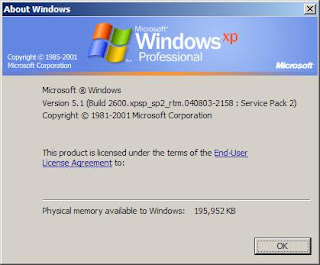 And now for the information you've been dying to hear since you started reading this article: how to do it. First, you must go into c:\windows\i386. On some systems this may simply be c:\i386. Now see if there is a folder called winntupg in there. If there is, you're good to go. Otherwise, get it off another Windows XP CD. It doesn't matter whether it's an OEM copy that came with another computer; it also doesn't matter which edition that disc is. Just get that folder into your i386 directory.
Now open up Registry Editor, select HKEY_LOCAL_MACHINE, and then click File > Load Hive. Select the file called setupreg.hiv in i386. Type in a temporary name, and then open that new key in HKEY_LOCAL_MACHINE. Go to ControlSet001, Services, and then setupdd. Now double-click (Default), and change the 01 and 02 in there to 00's. Click OK, select that key that was created when you loaded the hive, and then go to File > Unload Hive. Click Yes, and then close Registry Editor.
Now, look in i386 (on your hard drive) for a program called winnt32.exe. Run this program. When asked, choose to upgrade. Enter your product key (yes, it will be accepted) and install.
Now all that's left to do is wait, and then go through that Microsoft Out of Box Experience thing (with the blue question mark icon which moves around the screen giving assistance.) Even if you have an OEM copy of Windows, it will ask you to activate, but don't worry: it will do so just fine.
Some features will still be missing, but that's simply because the files for them don't even come with XP Home. If you really want them, copy them off of another computer which runs an honest-to-goodness XP Professional.
And now for the information you've been dying to hear since you started reading this article: how to do it. First, you must go into c:\windows\i386. On some systems this may simply be c:\i386. Now see if there is a folder called winntupg in there. If there is, you're good to go. Otherwise, get it off another Windows XP CD. It doesn't matter whether it's an OEM copy that came with another computer; it also doesn't matter which edition that disc is. Just get that folder into your i386 directory.
Now open up Registry Editor, select HKEY_LOCAL_MACHINE, and then click File > Load Hive. Select the file called setupreg.hiv in i386. Type in a temporary name, and then open that new key in HKEY_LOCAL_MACHINE. Go to ControlSet001, Services, and then setupdd. Now double-click (Default), and change the 01 and 02 in there to 00's. Click OK, select that key that was created when you loaded the hive, and then go to File > Unload Hive. Click Yes, and then close Registry Editor.
Now, look in i386 (on your hard drive) for a program called winnt32.exe. Run this program. When asked, choose to upgrade. Enter your product key (yes, it will be accepted) and install.
Now all that's left to do is wait, and then go through that Microsoft Out of Box Experience thing (with the blue question mark icon which moves around the screen giving assistance.) Even if you have an OEM copy of Windows, it will ask you to activate, but don't worry: it will do so just fine.
Some features will still be missing, but that's simply because the files for them don't even come with XP Home. If you really want them, copy them off of another computer which runs an honest-to-goodness XP Professional.

Sunday, July 06, 2008
Strange bitmaps inside many Windows programs
If you have ever fooled around with Resource Hacker, a free tool to view and edit resources in Windows executables, you may have noticed that many programs contain resources which appear to have been for features which were originally going to be in a program, but then removed. For example, if you look in MSPaint, you can find some removed dialogs, and if you look in that pinball game included with Windows XP, you can find some kind of editor dialog which cannot be opened. But there are a few bitmaps you can find inside of many different executables that I just don't know what they could have been. Look at this one for an example:

I see check boxes, radio buttons, and are those yin-yangs? Whatever this could have been used for, I can't think of. If you want to see for yourself, I took this image from Dependency Walker (DEPENDS.EXE), a tool which comes with Microsoft Visual Studio (and can also be downloaded separately from dependencywalker.com) though I have seen this particular image in several other programs as well.

I see check boxes, radio buttons, and are those yin-yangs? Whatever this could have been used for, I can't think of. If you want to see for yourself, I took this image from Dependency Walker (DEPENDS.EXE), a tool which comes with Microsoft Visual Studio (and can also be downloaded separately from dependencywalker.com) though I have seen this particular image in several other programs as well.
Saturday, July 05, 2008
Download: Alert (command-line message box tool)
I have another program for you: Alert. This program can create message boxes by command line. It is actually an upgrade of another program I had written for my own purposes, which only let you specify text. This one also lets you specify an icon and title text.
Download it at http://www.mediafire.com/?s10ryedzdmf!
Obviously this is intended for batch files and stuff like that. Or I guess you could use it in a scheduled task for a simple reminder system. You could even put a shortcut to it in someone's startup as a prank, to make them think they have a virus or something.
Download it at http://www.mediafire.com/?s10ryedzdmf!
Obviously this is intended for batch files and stuff like that. Or I guess you could use it in a scheduled task for a simple reminder system. You could even put a shortcut to it in someone's startup as a prank, to make them think they have a virus or something.
Monday, June 30, 2008
Download: OutCmd
Yes, that's right, another program ending in "Cmd." This one provides functionality similar to the Unix backquote (`) operator. If you don't know what that does, look at the readme.txt file, included along with the program and its source code.
Here's the link: http://www.mediafire.com/?ygxlggxijma
Here's the link: http://www.mediafire.com/?ygxlggxijma
Wednesday, February 20, 2008
Car hidden in vent?
Well I was wondering what it looks like in my vent, so I got out my digital camera, stuck it down in the vent, and took a picture (with the flash, of course!) What I got was certainly not what I was expecting:

Yes, that's right, there's a TOY CAR in the vent! As of now I still haven't retrieved it (I tried using both my bare hand and the vacuum cleaner) and in fact I think I may have even pushed it farther down. But I'm confident I'll get it sometime soon! ;)
But if you aren't the first owners of your house, especially if any of the previous owners had small children, you can be surprised at what you can find in your vents. I found what looks like another toy vehicle (but I can't really see what it is) and three little plastic people. Several years ago I also found some kind of orange thing with a picture of some character or something on it. But so far all I have managed to retrieve are the people (two I could get with my hands; the other one I needed the vacuum) and that orange thing.
But check your vents — you might find something!

Yes, that's right, there's a TOY CAR in the vent! As of now I still haven't retrieved it (I tried using both my bare hand and the vacuum cleaner) and in fact I think I may have even pushed it farther down. But I'm confident I'll get it sometime soon! ;)
But if you aren't the first owners of your house, especially if any of the previous owners had small children, you can be surprised at what you can find in your vents. I found what looks like another toy vehicle (but I can't really see what it is) and three little plastic people. Several years ago I also found some kind of orange thing with a picture of some character or something on it. But so far all I have managed to retrieve are the people (two I could get with my hands; the other one I needed the vacuum) and that orange thing.
But check your vents — you might find something!
Monday, February 11, 2008
Another download for you: Run with Parameters (RunCmd)
 From the readme.txt file:
[RunCmd] is a small open-source program I wrote to add a feature to Windows
that should have been there already. Have you ever wanted to run a
program with command line parameters using the GUI? Well then this is
the program for you!

Download it from MediaFire at http://www.mediafire.com/?4wgdkjjlihw, or from Softpedia using the button below!

Aperture Science desktop theme for Windows XP

I created an Aperture Science desktop theme. For those of you who don't know, it is from a game called Portal. You can look at readme.txt in the file for more information.
Download it here: http://www.mediafire.com/?31ni1uihm0w
Saturday, December 15, 2007
Transparency checkerboard bookmarklet
Okay, so I haven't actually written a post in a while (i.e. not just had Digg generate one for me.) Well hold your horses! I'm still posting!
Now you know when you edit images in Photoshop, Paint Shop Pro, or (my favorite) Paint.NET, you see that gray and white checkerboard wherever there is transparency? Do you ever wish you had that in your web browser (especially when viewing images as pages?) Have you been looking for something that can add that? Well look no further, as I have bookmarklets (small pieces of code you can bookmark and execute on a whim) that can do that.
Simply drag one of these links onto your Bookmarks toolbar(or your Links bar, dare I say it):
Now you know when you edit images in Photoshop, Paint Shop Pro, or (my favorite) Paint.NET, you see that gray and white checkerboard wherever there is transparency? Do you ever wish you had that in your web browser (especially when viewing images as pages?) Have you been looking for something that can add that? Well look no further, as I have bookmarklets (small pieces of code you can bookmark and execute on a whim) that can do that.
Simply drag one of these links onto your Bookmarks toolbar
- Checkerboard (gray/white)
- Checkerboard (high-contrast) (black/white)
Subscribe to:
Posts (Atom)